![federal-compass-white-icon-1.png]](https://knowledge.federalcompass.com/hs-fs/hubfs/federal-compass-white-icon-1.png?height=40&name=federal-compass-white-icon-1.png)
Import CRM Data (Organizations, Contacts, Opportunities, and Products & Services)
This guide explains how to import CRM data into Federal Compass using the bulk import tool. It covers where to access the import feature, how to download the correct template, and how to properly format your data before uploading.
Access the Import Tool
You can start an import from either the Pipeline/CRM section or from Platform Settings.
Option 1: From Pipeline/CRM
-
Navigate to Pipeline / CRM.
-
Select the object you want to import:
-
Organizations
-
Contacts
-
Opportunities
-
-
Click Import.

Option 2: From Platform Settings
-
Click Settings in the top-right corner.
-
Select Platform Settings.
-
Click Content Import.

Select the Object You Want to Import
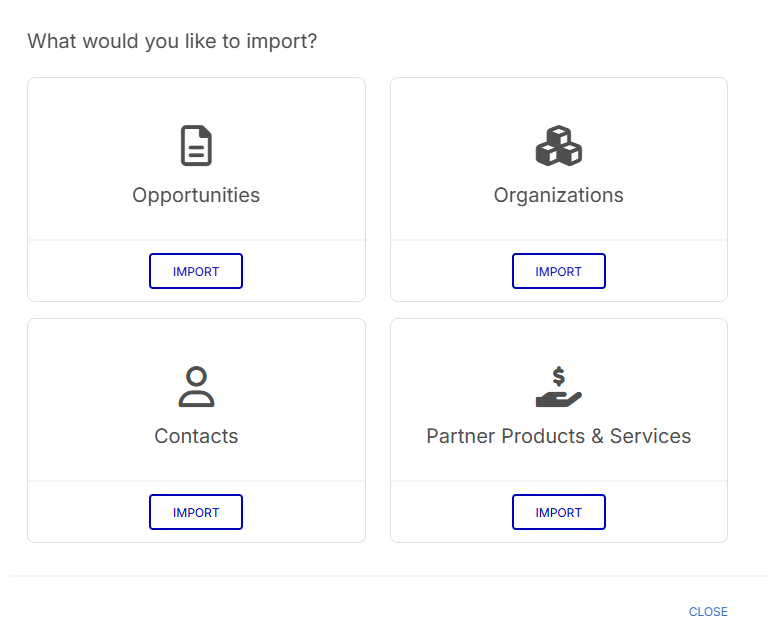
After selecting Import, you will see four import options:
-
Opportunities
-
Organizations
-
Contacts
-
Products and Services
Select the object you want to import. This ensures you download the correct template for that object type.
Download and Complete the Import Template
Before uploading your data, you must download the correct template.
-
Click Download Template.
-
Open the template file.
-
The first row contains the required column headers.
-
Enter your data beneath the appropriate columns.
File Format Requirements
-
Your file must be saved as a CSV (.csv).
-
Do not upload XLSX, PDF, or other file formats.
-
Column headers must exactly match the template.
The template may include both standard Federal Compass fields and custom fields configured for your account.
Single Select and Multi Select Fields
Some fields in the template are Single Select or Multi Select fields.
These fields will include a list of available options directly in the template.
Important
You must use the exact options listed in the template.
-
Do not create new values
-
Do not modify the wording
-
Do not enter custom values
Entering values that do not match the listed options will result in an import error.
Single Select Fields
Single select fields allow only one value from the available options.
Example:
Industry
Healthcare
Multi Select Fields
Multi select fields allow multiple values, but they must be separated using a pipe symbol.
Example format:
text | text
Example:
Healthcare | Defense | Technology
Each value must exactly match the options listed in the template.
Start the Import Process
Once your CSV file is ready:
-
Return to the Import page.
-
Click Start New Import.
-
Upload your CSV file.
-
Follow the prompts to map fields and confirm the import.
Import Limits and Requirements
The import tool supports the following limits:
-
Maximum 500 rows per file
-
Maximum 150 columns per file
Updating Existing Records
To update existing records instead of creating new ones, include the Federal Compass Record ID in your file.
You can obtain Record IDs by exporting records from the table view.
Without the Record ID, the system may create new records instead of updating existing ones.
Unique Field Requirements
Some fields must be unique when importing records:
-
Organizations must have a unique email domain
-
Contacts must have a unique email address
Duplicate values may prevent records from importing correctly.
Verify Imported Data
After the import is complete:
-
Navigate to Pipeline / CRM.
-
Open the object you imported.
-
Review several records to confirm the data imported correctly.
If needed, you can edit records directly or correct the CSV file and re-import.
Best Practices
-
Start with a small test import before uploading large files.
-
Keep a backup copy of your CSV file.
-
Double-check your column headers and formatting.
Common Import Errors
Wrong file type
Only CSV files are supported.
Incorrect column headers
Headers must exactly match the template.
Invalid select field values
Single-select and multi-select fields only accept predefined values.
Missing Record ID for updates
Without the Record ID, records may be duplicated.
Too many rows
Files containing more than 500 rows will not import.
Need Help?
If you need assistance with importing CRM data, contact the CSM team: