![federal-compass-white-icon-1.png]](https://knowledge.federalcompass.com/hs-fs/hubfs/federal-compass-white-icon-1.png?height=40&name=federal-compass-white-icon-1.png)
Who this helps
- Contractors looking to streamline partner management and collaboration
- Organizations aiming to centralize partner data and reduce silos
- BD and capture teams who frequently identify, evaluate, and work with partners
Why Connect with Partners
Connecting with partners in Federal Compass helps you move beyond static data and build an actionable partner network.
Instead of starting from scratch each time a new opportunity arises, partner connections allow you to:
- Track which partners you've already engaged with
- Understand who is open to collaborating
- Avoid repeated outreach and email back-and-forth
- Build a network you can activate quickly when the right opportunity comes along
This process is about laying the foundation early, so when an opportunity fits, you're not restarting conversations, you're continuing them.
Navigate to Partner Management
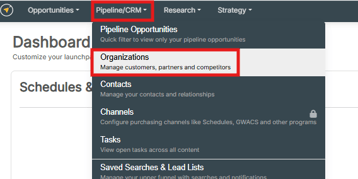
- From the Platform page, click Pipeline/CRM in the top-left corner.
- In the dropdown menu, select Organizations.
- You will be directed to the Organizations page, where partner records are created and managed.
Create an Organization
To begin connecting with a partner, you must first create an organization record:
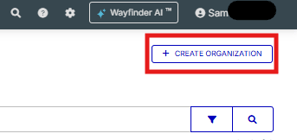
- On the Organization page, click Create Organization in the top-right corner.
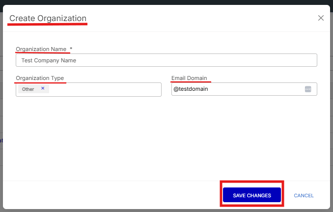
- Enter the required information:
- Organization Name (required)
- Organization Type (Commercial, Government, Nonprofit, Education, Other)
- Email Domain
- Save the organization to add it to your records.
Creating an organization does not automatically send an invitation.
- You can create multiple organizations without inviting them
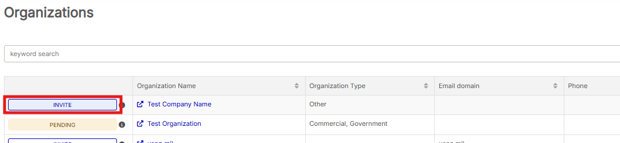
- You must click Invite for the connection and collaboration to begin
Edit Organization Details
After creating an organization, you can update additional details directly from the Organizations page or by opening the organization record.
-
From the Organization Page
You can edit fields such as:
-
- Organization Type
- Email Domain
- Phone
- Website

The Organization Name cannot be edited from this view or a record cannot be deleted from this view.
-
From the Organization Record
Clicking on the organization name will take you to the full organization record, where you have additional options:
-
- Invite a Partner
- You can also send a partner invitation from this page using the same process
- Edit Organization Details
- Click Edit to update fields, including the Organization Name
- Click Save Changes to apply updates
- Actions Menu
- View Change Log to track updates
- Delete Organization if the record is no longer needed
- This can only be done from the organization record page.
- Invite a Partner

Invite Partner
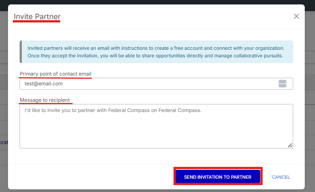
After creating the organization, you can invite the partner to connect:
- Click Invite next to the organization name.
- Enter the Primary Point of Contact Email.
- Add a custom message (optional).
- Example: “I’d like to invite you to partner with Federal Compass on Federal Compass”
- Click Send Invitation to Partner.
Enable Collaboration
After the partner accepts the invitation, collaboration becomes available:
- Share opportunities directly with the partner
- Collaborate on active pursuits
- Manage partner involvement across opportunities
Track Invitation Status
You can monitor partner invitation activity directly from the Organizations page:
- Pending → Invitation sent but not yet accepted
- Accepted → Partner has joined and is connected
Filter and View Organizations
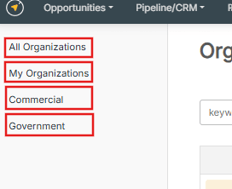
Use the left-hand panel to view your organizations:
- All Organizations → Displays all records
- My Organizations → Shows organizations you created
- Commercial → Displays only commercial type organizations
- Government → Displays only government type organizations
Manage Partner Invitations
You can also manage incoming partner invitations:
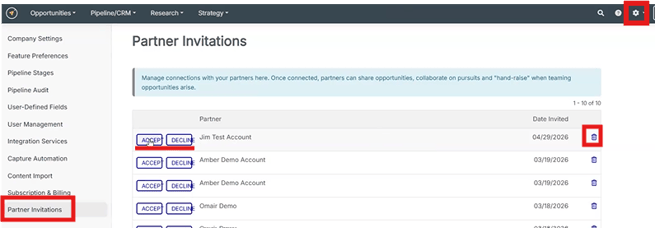
Navigate to Invitations
-
Go to Settings
-
Select Platform Settings
- Click Partner Invitations (bottom left)
Respond to Invitations
-
Accept → Connect and enable collaboration
-
Decline → Reject the request
- Delete → Remove the invitation
Once accepted, partners can share opportunities and collaborate with your team.
Best Practices for Partner Connections
- Invite partners early in the capture process to allow time for collaboration
- Keep organization records updated with accurate contact and company information
- Use consistent organization types (commercial vs government) for better filtering
- Track invitation status and follow up on pending invites
- Connect partners to opportunities to keep collaboration organized
Use Cases & Value
- Build and manage teaming strategies for upcoming opportunities
- Centralize partner and competitor information in one place
- Improve collaboration across capture teams and external partners
- Track partner engagement and performance across pursuits
Conclusion
Connecting with partners in Federal Compass helps your team stay organized, reduce manual outreach, and build a network you can activate when it matters most. By turning partner data into a connected, collaborative system, you can move faster and make more informed teaming decisions.
Need Additional Help?
If you have any questions, please reach out to the CSM team for further assistance, support@federalcompass.com.